
OnlyText
A quiet reader for TXT, EPUB and more
Your text files.Nothing else.
OnlyText reads the text, EPUB, PDF, Markdown and other book files you bring to it, on iPhone and iPad. No ads, no subscription.
Free download · 14-day free trial · Then a one-time purchase
iOS and iPadOS 18 or later · Apple Watch app: watchOS 11 or later
Read your files as they are.
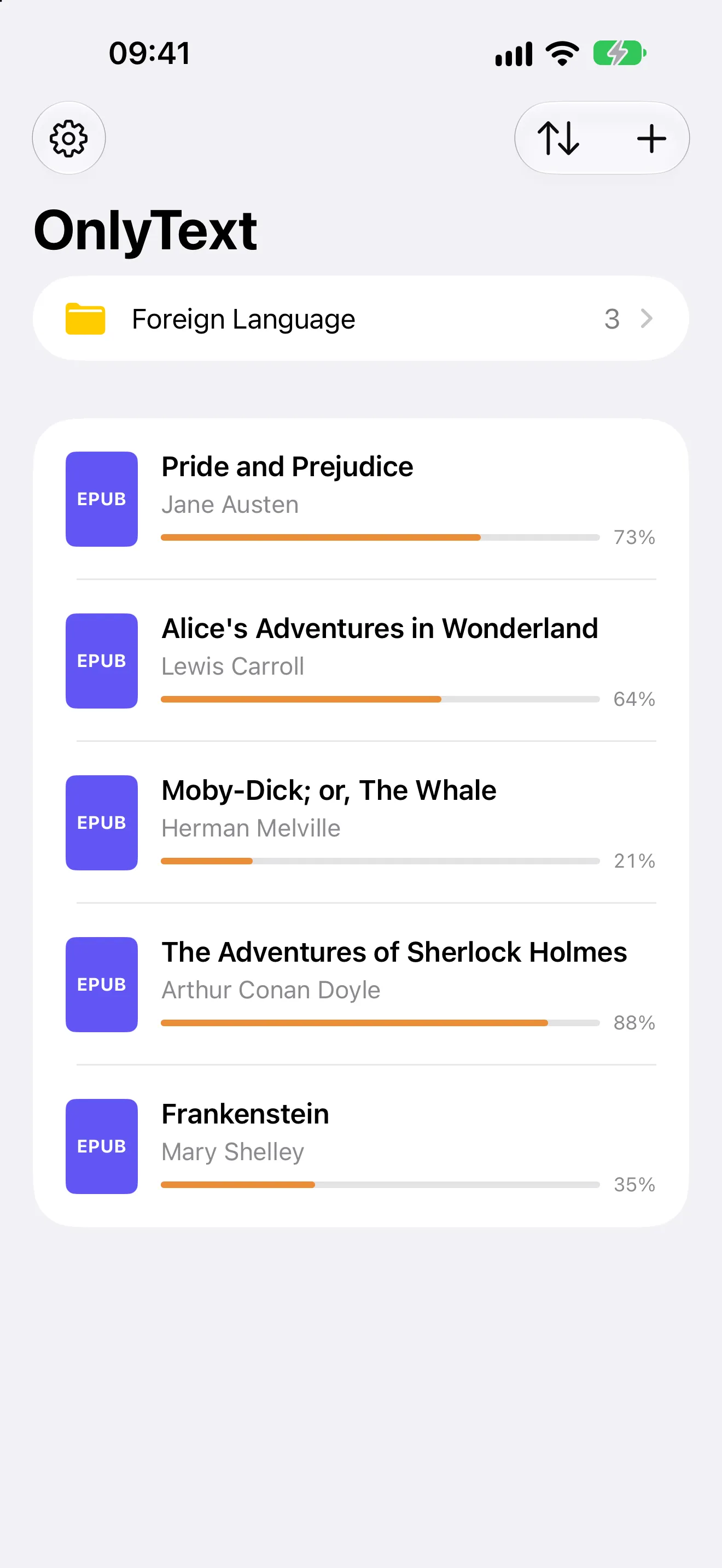
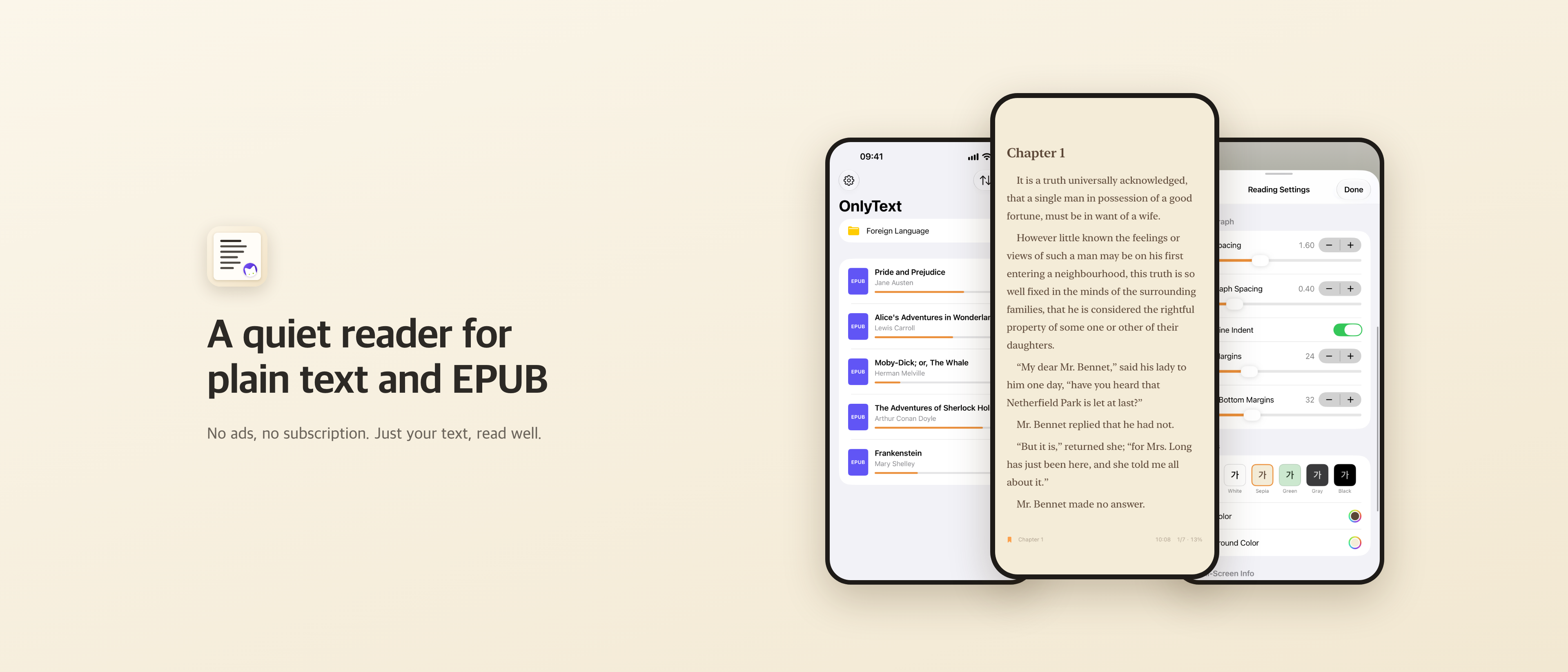
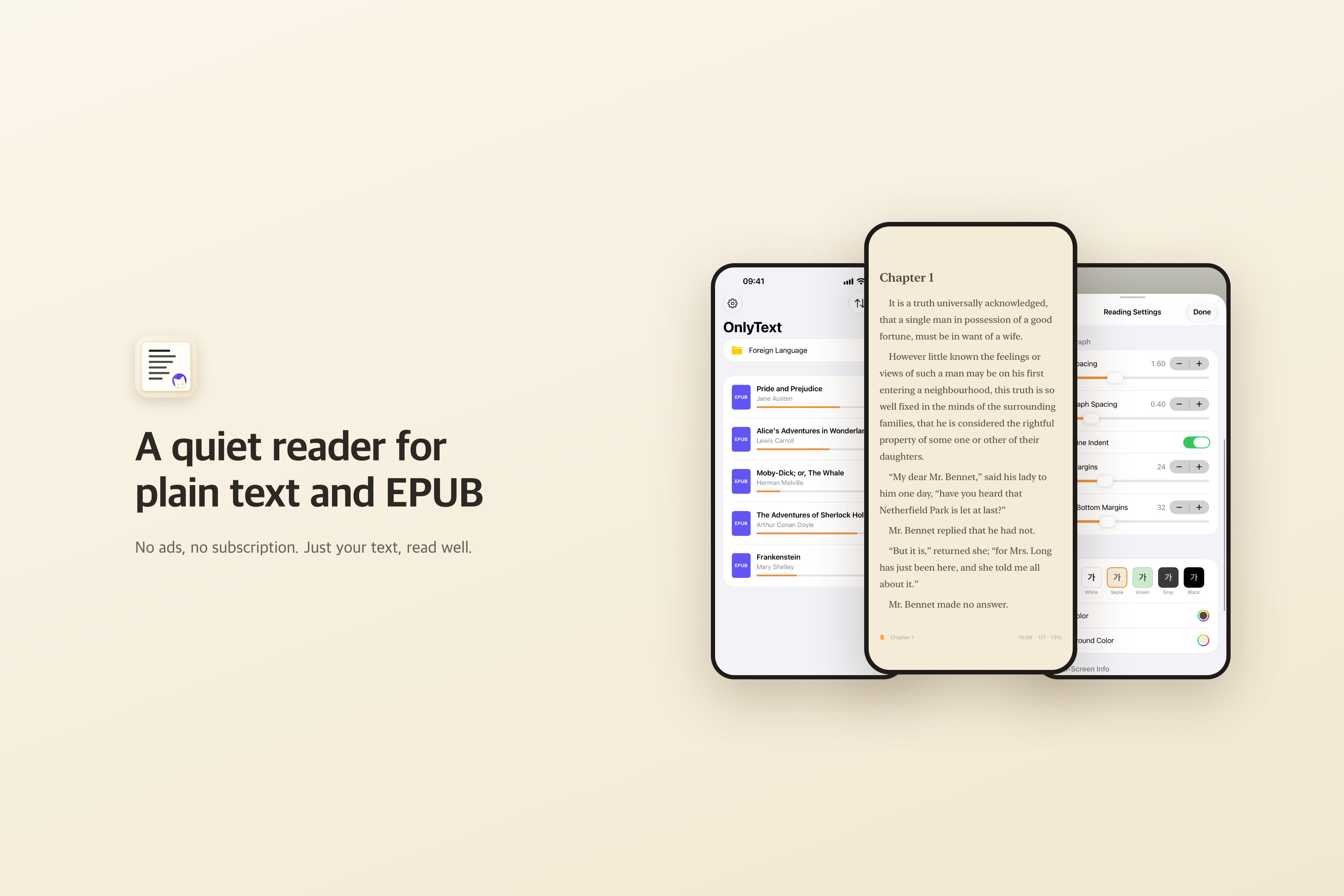
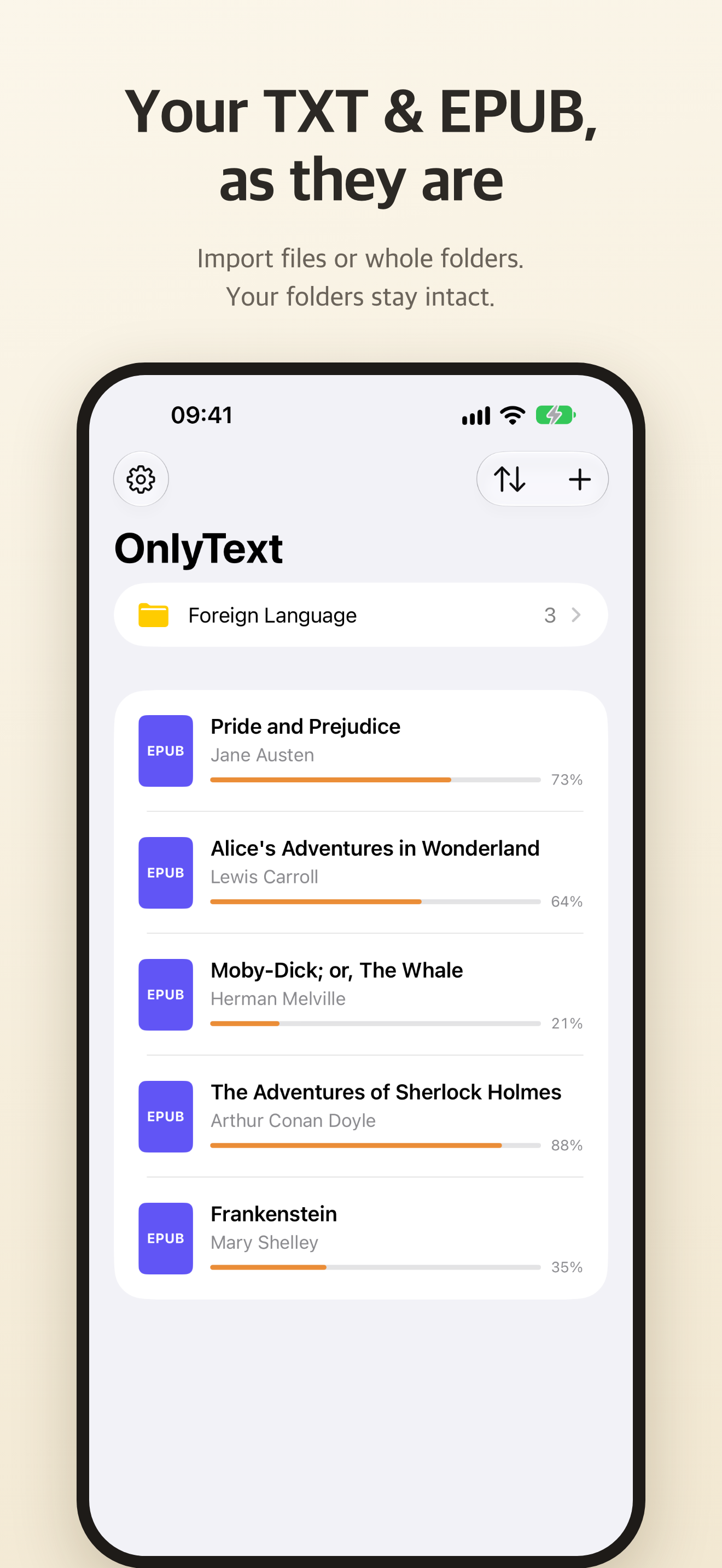
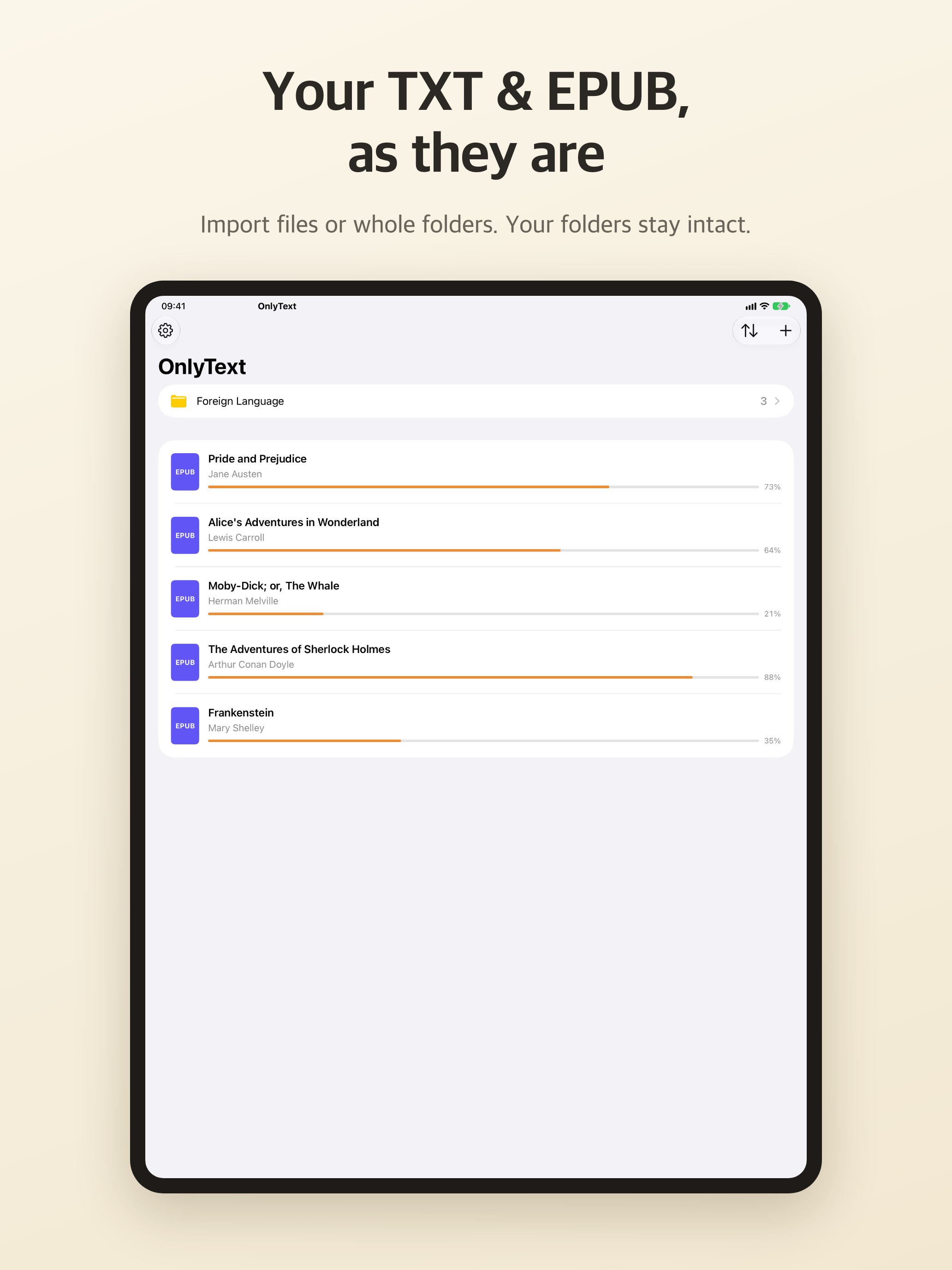
Import TXT, EPUB, MOBI, AZW3, FB2, PDF, Markdown, DOCX, ODT, RTF and HTML files, or whole folders, from the Files app. You can also drop them into On My iPhone › OnlyText, or connect to a computer and add them with Finder on a Mac or the Apple Devices app on Windows, and they appear in your library right away. Or add a WebDAV server, such as a NAS (Synology, QNAP), Nextcloud or ownCloud, browse its folders, and download books or whole folders.
- Your folder structure is kept. Select several books to move or delete them at once.
- Sort the library by recent, name or date created. Search titles, authors, bookmarks, notes and the full text of every book.
- Give each book a rating, review, tags, genre, publisher and year, and group books into collections. Browse by collection, tag, author, publisher, genre, year or rating.
- Keep private books in the Secret Folder. It opens only with Face ID or your passcode, its books stay out of recents and search, and it locks again when you leave the app. You can also lock a single book.
- Markdown looks like a document: headings, lists, tables, quotes and code blocks are laid out properly, code is syntax-highlighted, and Mermaid diagrams are drawn as pictures you can tap to enlarge.
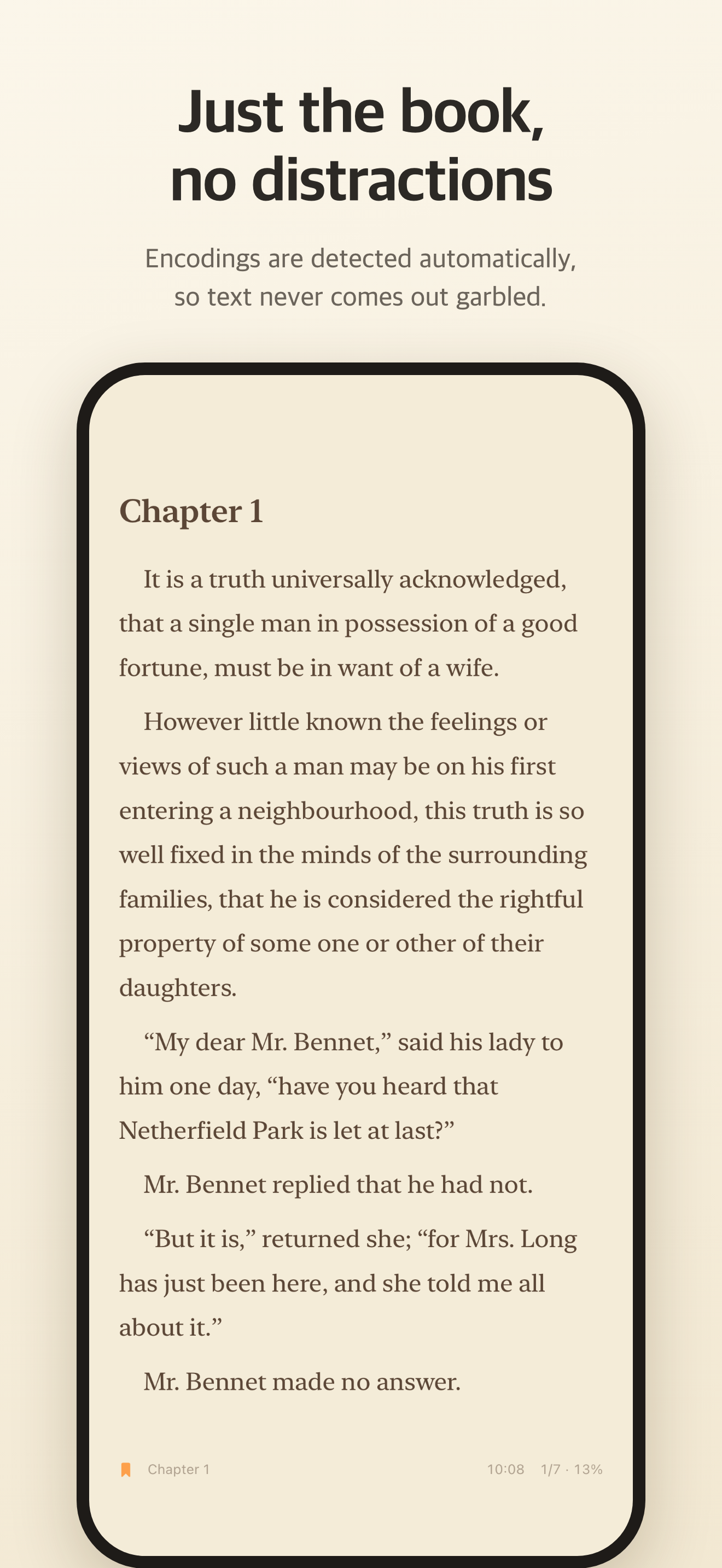
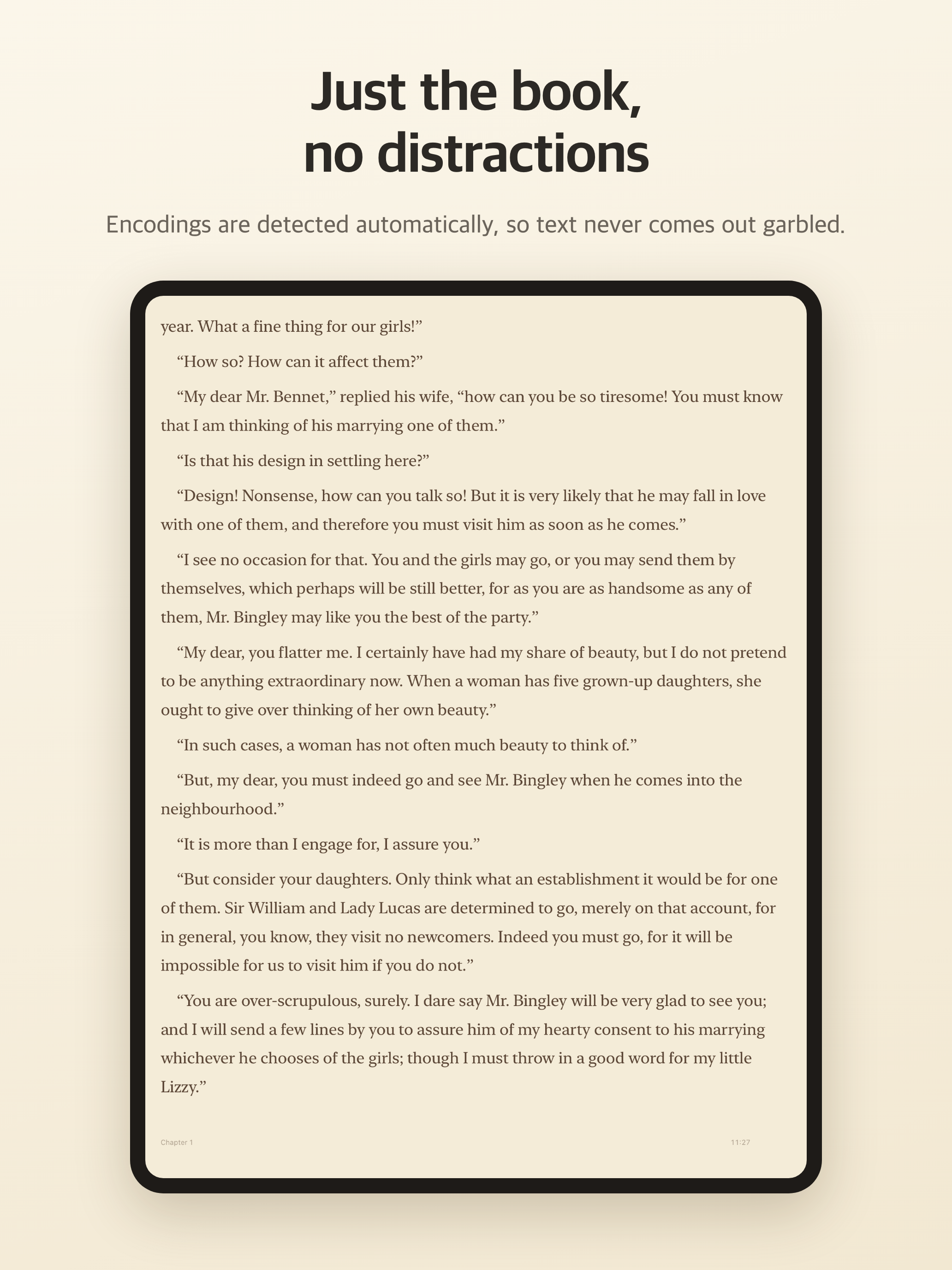
- Encodings are detected automatically: UTF-8, EUC-KR/CP949, Shift_JIS, EUC-JP, GB18030, Big5, UTF-16 and Windows-1252.
- If the text still looks wrong, switch the encoding, or convert the file to UTF-8 and save it.
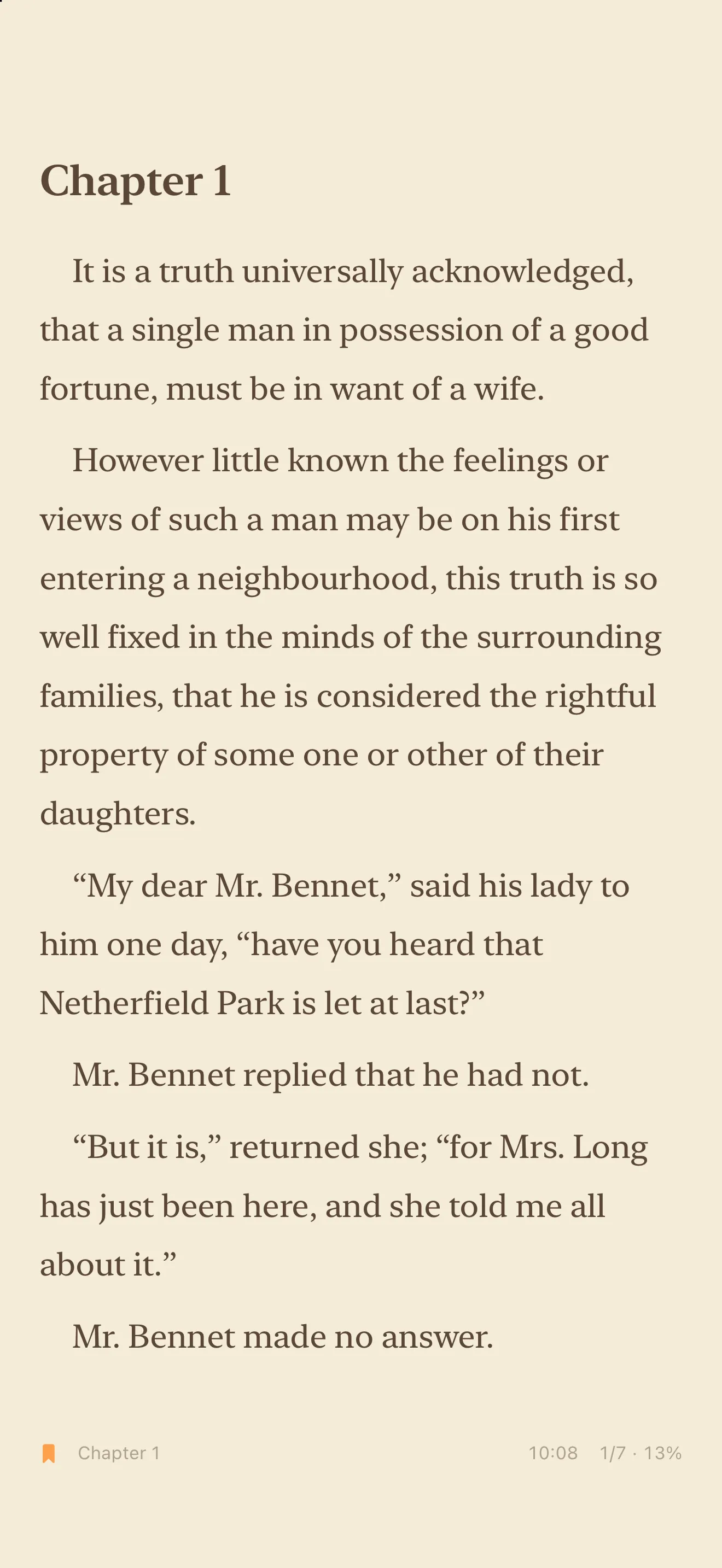
- In TXT files, lines that were broken to fit an old screen width are joined back into paragraphs (Fix Line Breaks), and lines like “Chapter 1” or “제1화” become a table of contents (Detect Chapters). Both are on by default. Change them for every book in Settings › Text File Cleanup, or for one book in the reader under Menu › Encoding.
Set the page the way you read.
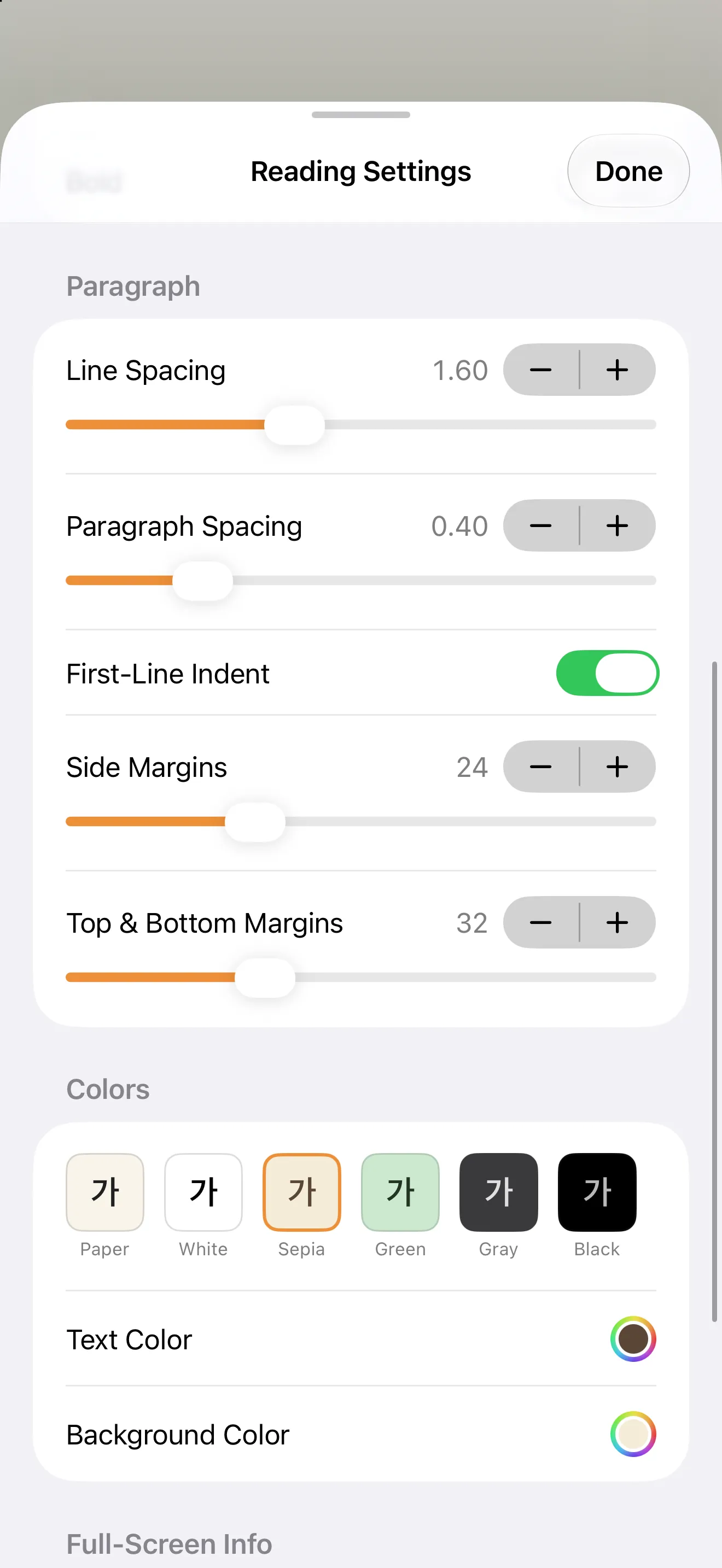
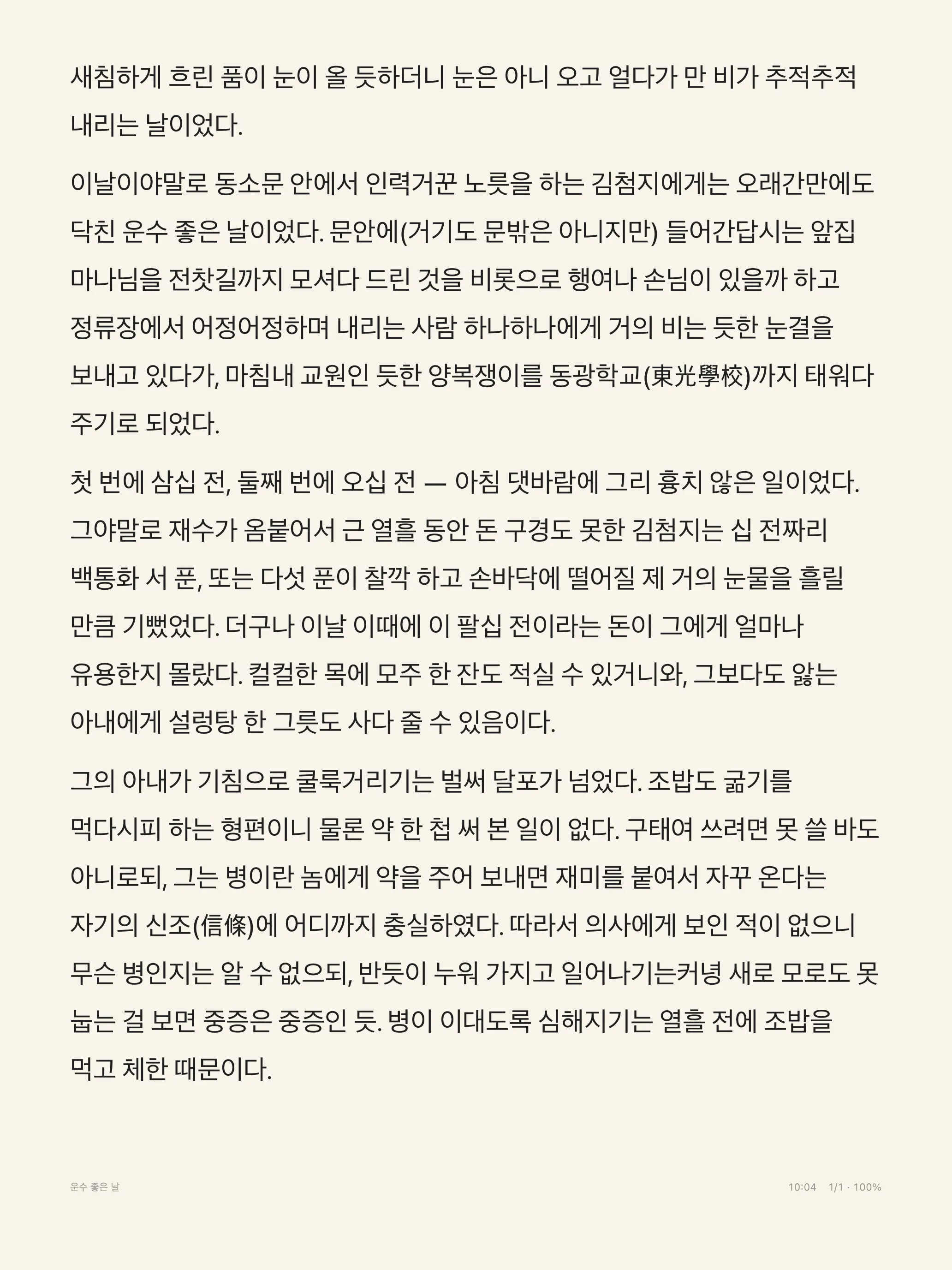
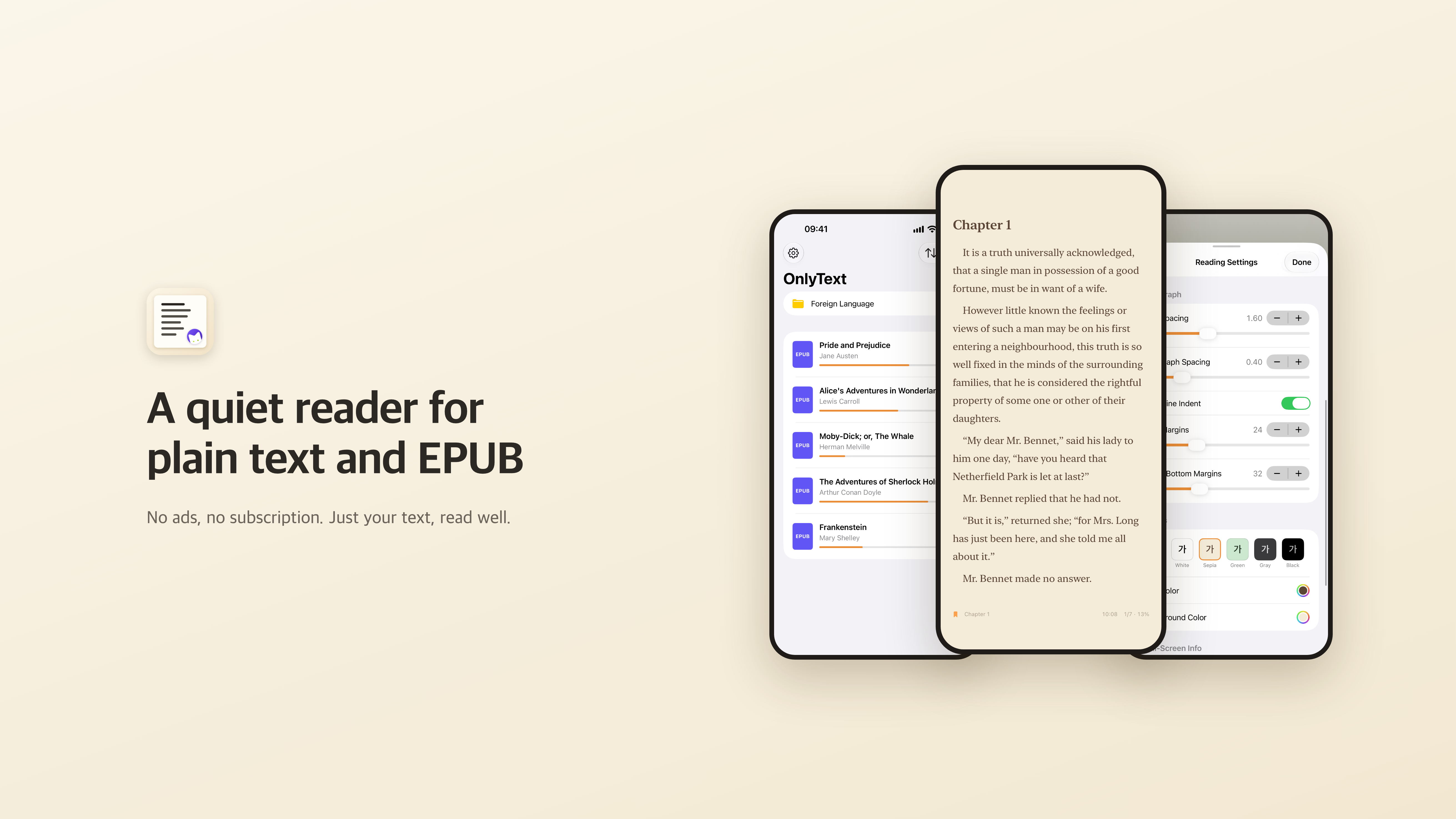
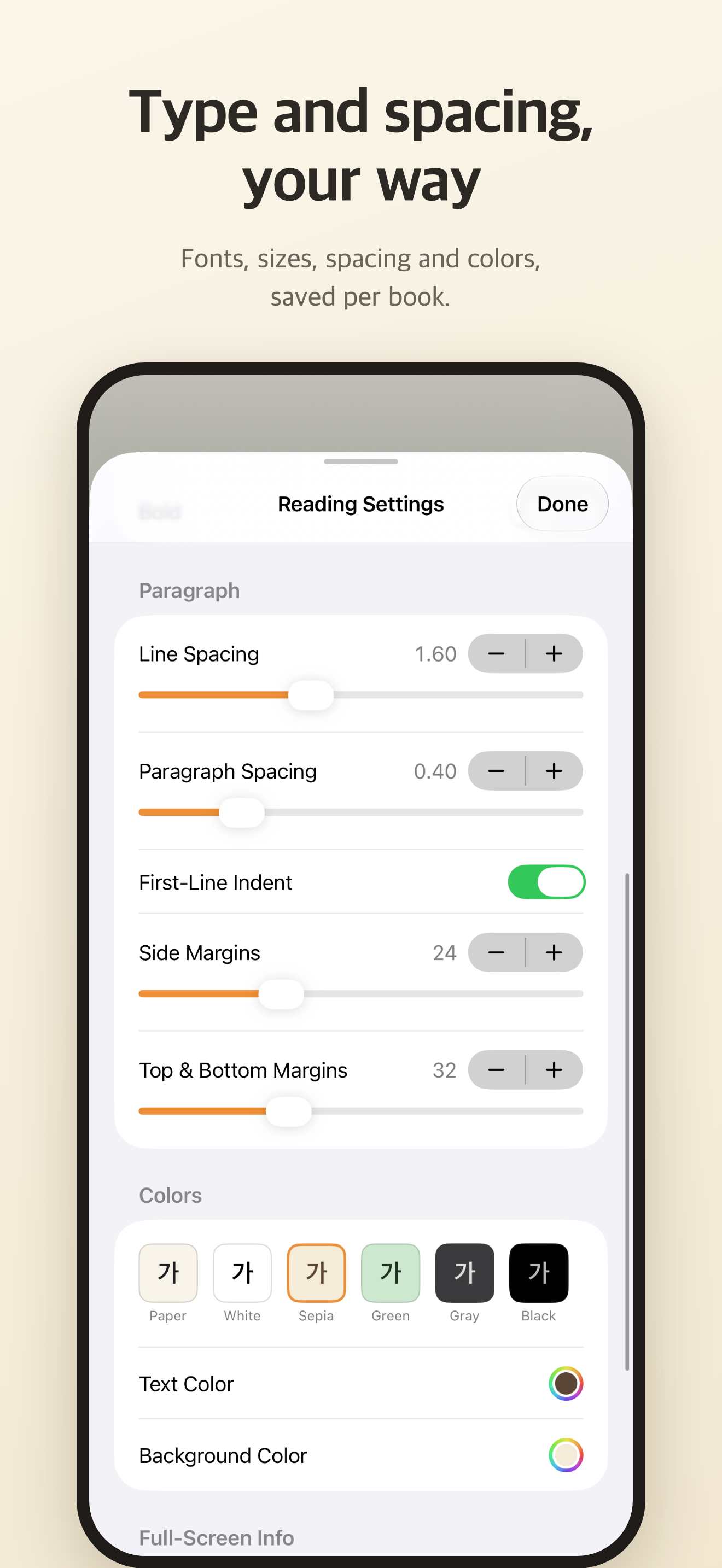
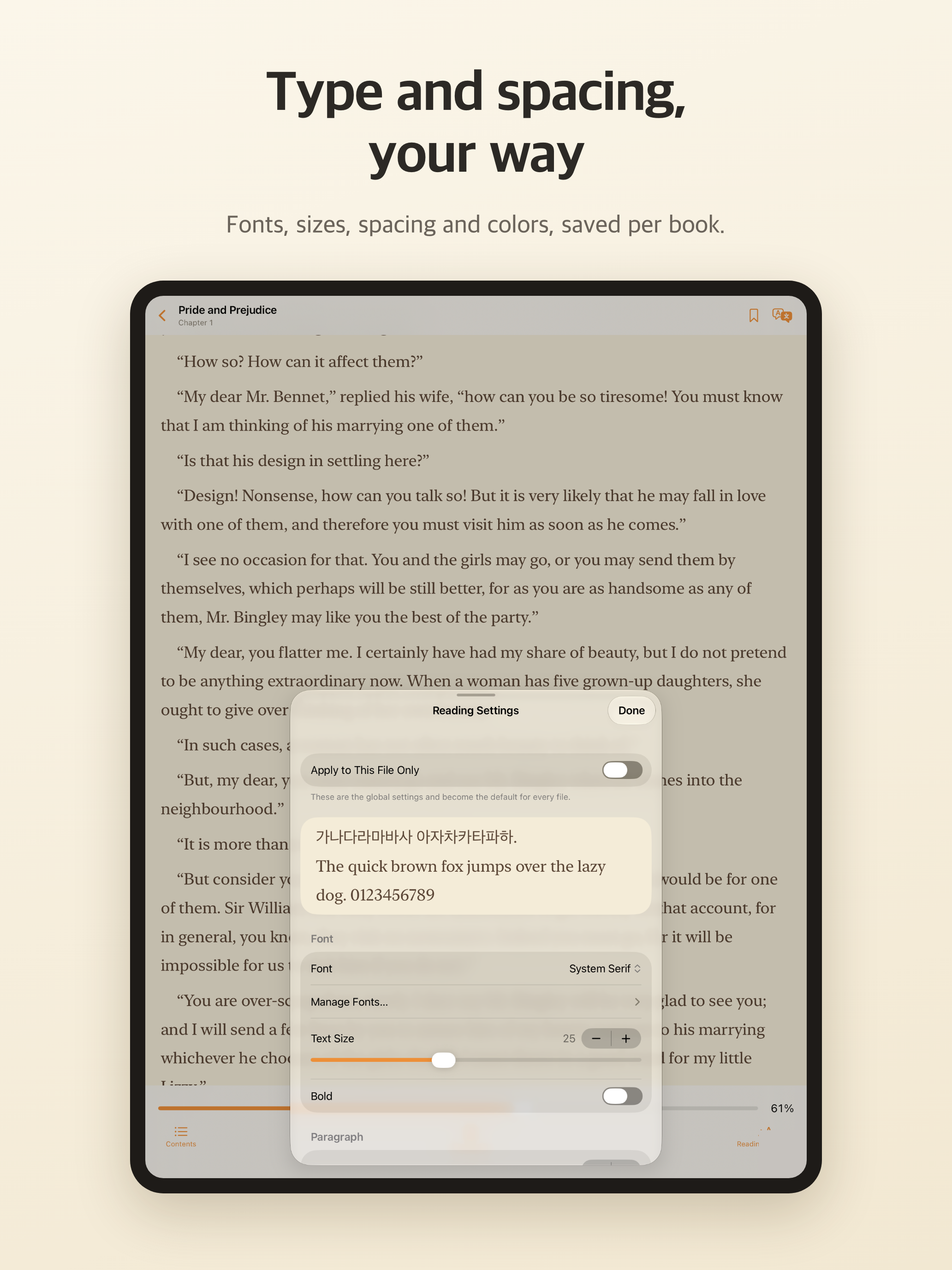
Change the font, size, line and paragraph spacing, and margins. Use the same settings for every book, or give one book its own.
- Six color themes: Paper, White, Sepia, Green, Gray and Black.
- Use fonts installed on your device, or fonts you pick from the Files app.
- On iPad or in landscape, read two pages side by side like a printed book.
- Turn pages by tapping or swiping, or with the volume buttons, and choose your own tap zones. Connect a Bluetooth keyboard, page-turner remote or gamepad and assign any button to next page, previous page or the menu.
- Read Aloud: pick a voice and speed, and follow along as the current word is highlighted. It keeps reading with the screen off, and you can pause or skip from the Lock Screen and Control Center. Symbols such as *, =, -, _ and # are skipped (Skip Symbols), and you can change which ones in its settings.
- For hands-free reading, try Auto Page Turn, Word Highlight or One Word at a Time from the reader menu.
- Search the whole book for a word and jump to it, highlighted on the page. Original PDFs can be searched too.
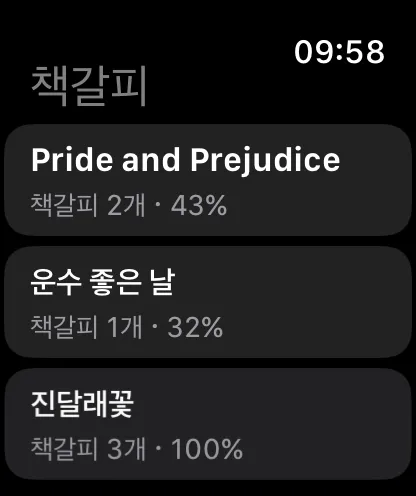
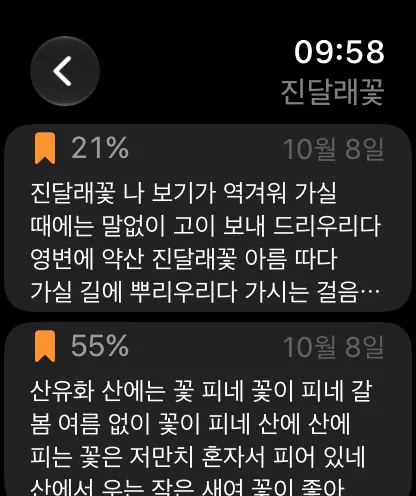
Turn pages and see bookmarks on your wrist.
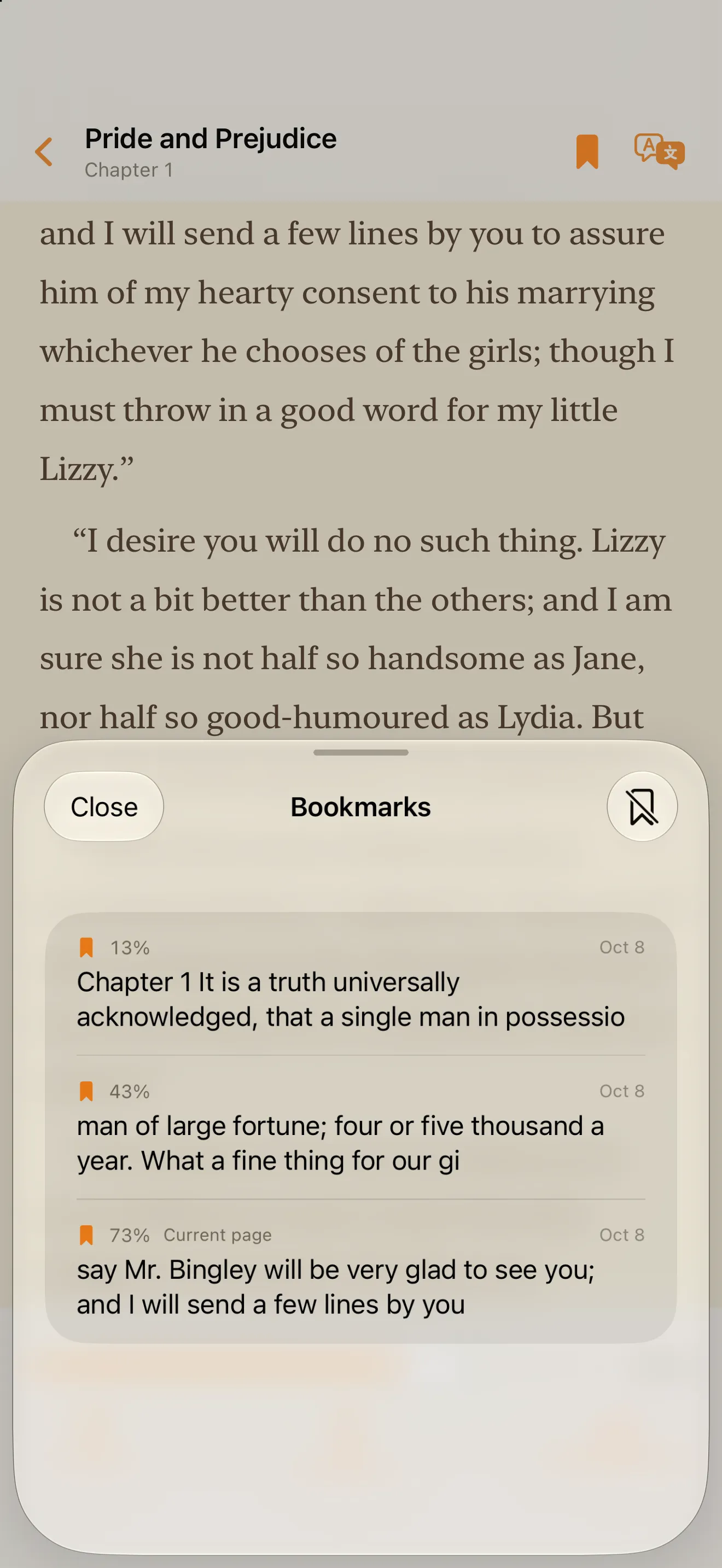
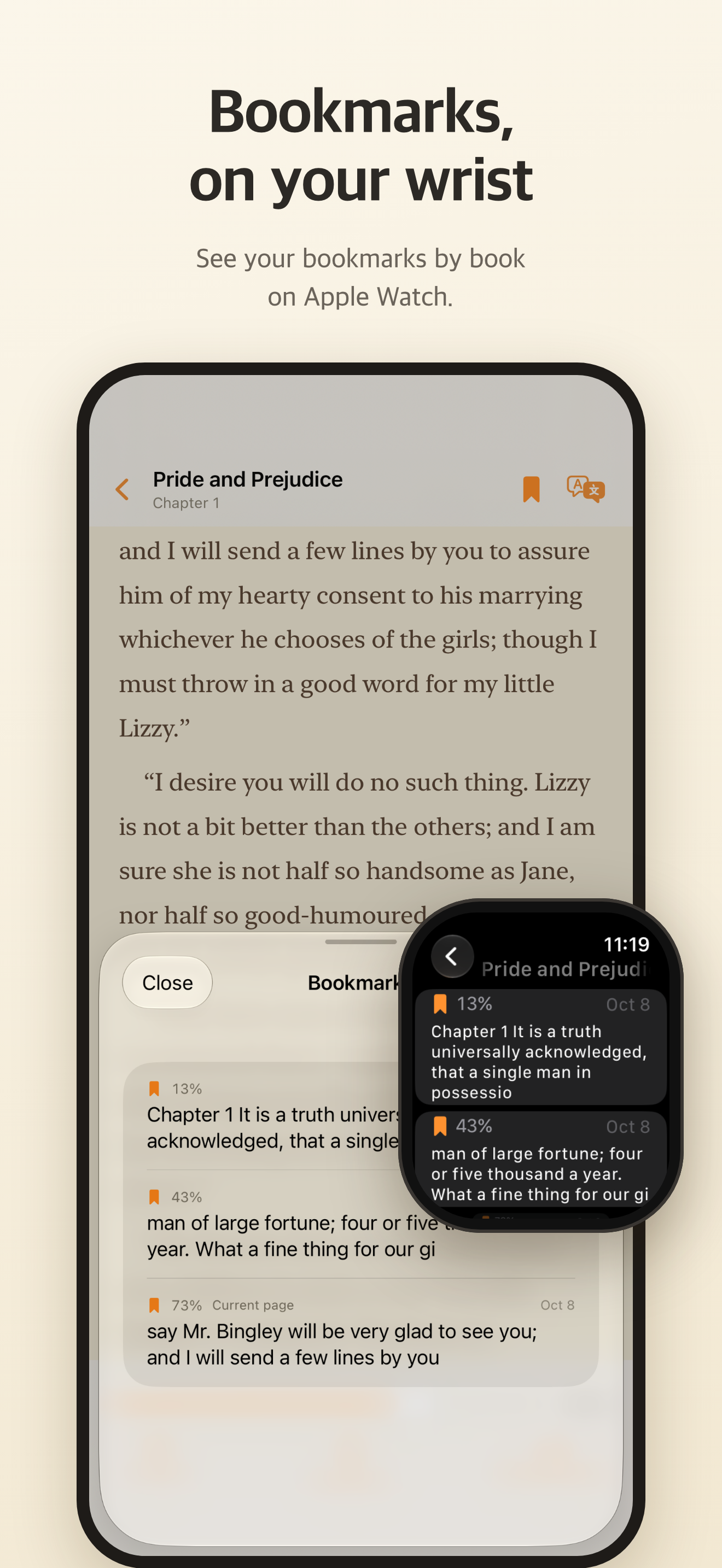
Save the page you’re on, or touch and hold text to save a passage. Bookmarks keep their place even after you change the font or text size, and sync to your other iPhone or iPad through iCloud.
- Touch and hold text to select the paragraph, then drag or move the handles to choose exactly what you want. Save it to your bookmarks or copy it. Saved passages are highlighted on the page and listed with your bookmarks, marked with a quote icon.
- Add a note to any saved passage, and export highlights, notes and bookmarks from all your books as Markdown or as a CSV for Readwise.
- Use Apple Watch as a remote: tap the screen or use Double Tap (Series 9, Ultra 2 and later) for the next page, turn the Digital Crown to go forward or back, or use the button for the previous page. Pages turn even with your iPhone screen off. Double Tap works only with your wrist raised and the screen on, so with your wrist resting, turn the crown or tap the screen. On the Watch’s Help screen, choose how many crown clicks turn one page (4 by default) and the crown sensitivity.
- On the Watch, tap the bookmark button at the top left to see your bookmarks by book, synced from your iPhone, with the start of each bookmarked passage.
Made to stay out of the way.
- 11 languages
- Korean, English, Japanese, Chinese (Simplified and Traditional), French, Italian, Portuguese (Brazil), Spanish, Hindi, Indonesian and Russian.
- iCloud sync
- Reading positions and bookmarks sync between your iPhone and iPad through your own iCloud account. Import the same book file on each device and pick up where you left off; if you read further on another device, OnlyText offers to take you there. Book files, settings and books in the Secret Folder aren’t synced. Sync is on by default, and you can turn it off in Settings.
- No ads, no tracking
- No ads, no analytics. Your book files stay on your device, and iCloud sync keeps reading positions and bookmarks in your own iCloud account. Read-aloud voices run on your device, and WebDAV passwords stay in your device’s keychain. The developer collects no data.
- Buy once
- Use every feature free for 14 days. To keep opening books after that, buy once. It is not a subscription.
- Labs
- Experimental options live in Settings › Labs and are off by default: paragraph translation beside the original, and turning pages by tapping the back of your iPhone. Translation is still slow and can use a lot of battery.
Before you download
Which devices does it support?
iPhone and iPad with iOS or iPadOS 18 or later. The Apple Watch app needs watchOS 11 or later.
What happens after the free trial?
Every feature is free for 14 days, and the trial never charges you automatically. After it ends, a one-time in-app purchase lets you keep opening books. It is not a subscription. Your library, importing, settings and the Apple Watch app keep working either way. On another device, use Settings › Restore Purchases.
Does my book’s text leave my device?
Your book files never leave your device. With iCloud sync on (the default), reading positions and bookmarks, including the text of passages you save, are stored in your own iCloud account so your iPhone and iPad stay in sync. The developer can’t see them, and you can turn sync off in Settings. Read Aloud voices are generated on your device, and books in the Secret Folder aren’t synced. The experimental translation in Labs runs on your device with Apple’s Translation framework and Apple Intelligence.
Press kit
Feel free to use these in articles and reviews. Click an image to open it at full size.
Bring your own books.
Try OnlyText free for 14 days on your iPhone or iPad.
iOS and iPadOS 18 or later · Apple Watch app: watchOS 11 or later
Questions or bug reports? [email protected]